
You’ve got a laptop charger pressed against the wall, a monitor lead crossing the desk edge, USB cables dropping behind the drawer, and a power bar occupying the only useful patch of floor. The desk looks manageable from above, but one chair movement can pull a connector loose or drag a cord into a walkway.
A cable management sleeve can improve that situation, but it isn’t a magic concealment tube. Used properly, it’s a routing and bundling aid that keeps low-voltage cables together while preserving access to plugs, adapters, and inspection points. Used carelessly, it can hide damage, trap heat, or make a small desk harder to reconfigure.
Table of Contents
- Why Compact Desks Need Better Cable Routing
- What Is a Cable Management Sleeve
- Cable Sleeve Materials and Designs Compared
- The Safety Side of Desk Cable Bundling
- Installing a Cable Management Sleeve on a Small Desk
- Choosing the Right Sleeve for Reversible Desk Setups
Why Compact Desks Need Better Cable Routing
Compact desks rarely fail because of cable count alone. They fail because several devices have to share one short path from the back edge of the desk to the wall or floor, and that path gets crowded fast. A laptop charger, monitor power lead, HDMI or DisplayPort cable, USB accessories, Ethernet, speakers, and a phone charging lead can all end up competing for the same gap. Once that happens, cords start crossing each other, dragging at connectors, and dropping into places where chair wheels, shoes, or a vacuum can catch them.

A sleeve helps by giving those cables a defined route. On a small desk, that matters more than concealment. If five low-voltage leads leave the desk separately, they spread, twist, and drift across the floor. If they leave together along one planned line, the setup stays easier to follow, connectors stay where you expect them to be, and cords are less likely to get pinched under furniture or pulled sideways out of a port.
Practical rule: Organise the route first, then choose the sleeve. A tidy bundle in the wrong place is still a poor installation.
Safety is part of the job, not an extra benefit you think about later. Manitoba Hydro’s electrical-safety guidance notes that electrical fires account for almost 20% of residential fires nationwide. That does not mean a sleeve prevents a fire. It does mean cable routing should support safe use, clear inspection, and quick access when something looks wrong.
In practice, that usually means separating cable types by function. A sleeve can keep USB, HDMI, Ethernet, and audio leads together so they stop wandering. Power bars and bulky adapters need a different approach. They are usually better in an open tray or another supported position where connections remain visible and there is room around the hardware. Wall receptacles, power-bar plugs, and cable ends should stay easy to inspect.
A compact desk is easier to live with when each cord has an obvious job and an obvious path.
Use a simple test. If you need to move your laptop to the kitchen table, you should be able to find the right lead and disconnect it without crawling under the desk or tugging on the wrong bundle. If you cannot, the problem is routing.
<iframe width=“100%” style=“aspect-ratio: 16 / 9;” src=“https://www.youtube.com/embed/dnUqBoIq0J0” frameborder=“0” allow=“autoplay; encrypted-media” allowfullscreen></iframe>
What Is a Cable Management Sleeve
A cable management sleeve is a flexible or semi-rigid covering that gathers several cables into one guided bundle. On a small desk, it usually runs along the rear edge, down a leg, or between the desktop and a floor-level power location. Its value comes from controlling direction and spacing, not from sealing every cable inside an inaccessible tube.
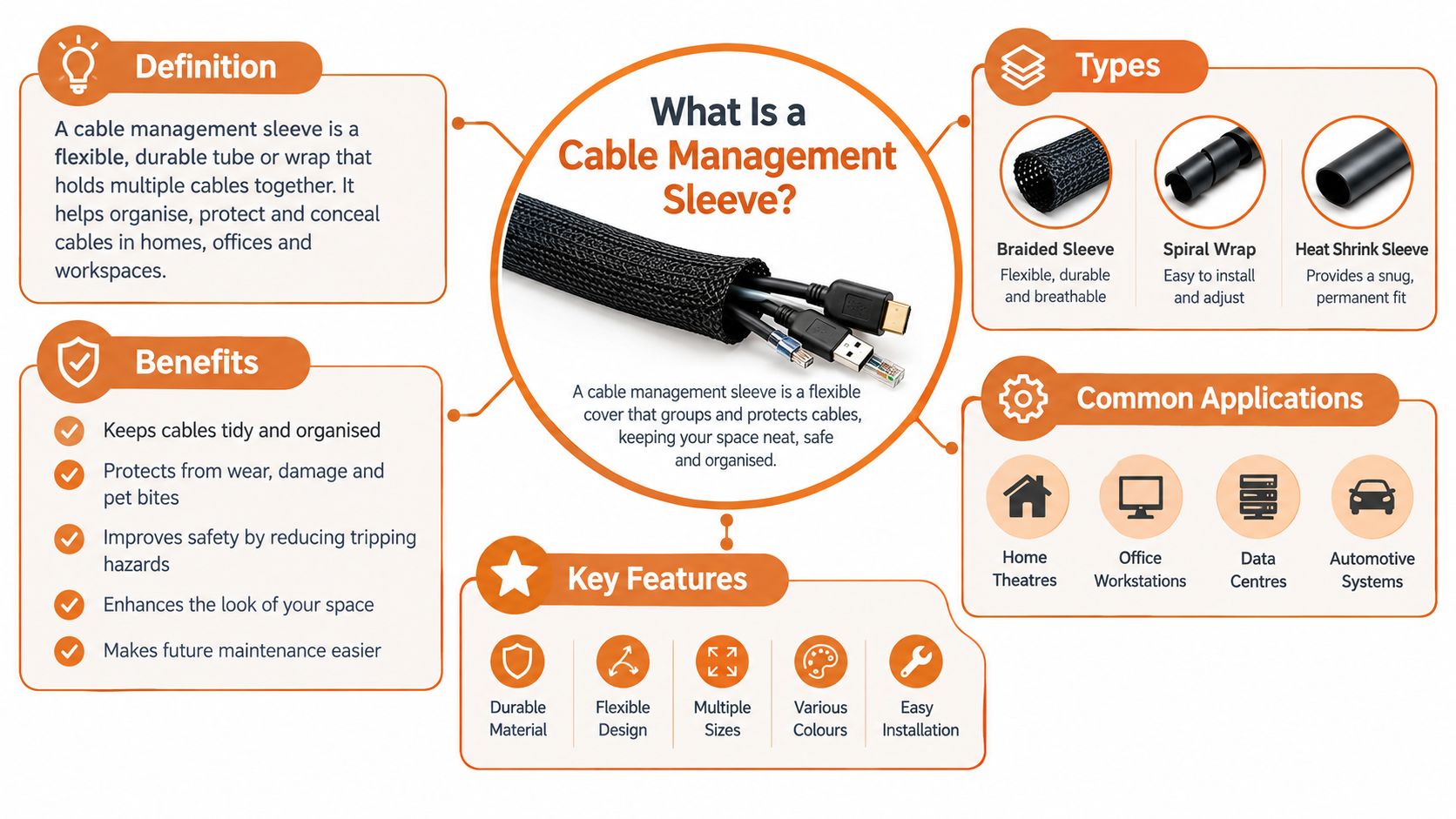
Most sleeves use one of four access patterns:
- Closed tube: Cables pass through an opening at the end. This looks clean but works best when the bundle rarely changes.
- Zipper sleeve: A zipper opens along the length, making it easier to add or remove a cable without disconnecting everything.
- Split sleeve: A slit lets you press cables into the sleeve from the side. It’s convenient for quick changes, though cables can escape if the bundle is too small or poorly supported.
- Wrap or hook-and-loop sleeve: The material overlaps around the cables and can be opened at any point. This suits temporary routes and frequent device swaps.
A sleeve isn’t the same as an under-desk tray. A tray is a supporting structure that can hold a power bar and adapters while leaving more air around them. It also isn’t the same as adhesive raceway, which creates a more fixed channel along a wall or desk surface. Permanent conduit and approved wiring systems serve different installation purposes and shouldn’t be replaced by a fabric or neoprene accessory.
The distinction matters because a desktop sleeve isn’t automatically a Code-rated raceway. The Canadian Centre for Occupational Health and Safety explains the role of CSA C22.1, the Canadian Electrical Code, as the national installation standard referenced by provincial and territorial legislation. A sleeve can organise flexible desk cables, but it doesn’t convert an extension cord into approved permanent wiring.
Look for openings that let you inspect both ends. The sleeve should also leave room around connectors, avoid forcing a power brick into the bundle, and allow enough slack for normal desk movement. If the product only looks tidy when stretched tight, it’s the wrong size or the wrong design.
Cable Sleeve Materials and Designs Compared
Material affects how a sleeve behaves when the desk is cramped. Fabric sleeves are light and easy to open, with a soft finish that works well around a desktop edge. They’re often the most practical option for low-voltage bundles that need frequent access.
Neoprene offers more structure and cushioning, but it can feel bulky around several cables and may hold warmth closer to the bundle. PVC can provide a smoother, more wipeable surface, though stiff versions resist tight turns and may make connectors sit at awkward angles. Mesh gives better visibility and can make inspection easier, but its openings may snag on rough hardware or expose a bundle that needs more support.
The right choice depends on what the sleeve must carry:
- Mostly USB, Ethernet, HDMI, or audio: Choose a flexible, openable sleeve that can follow a gentle route and accept cable changes.
- A monitor cable with a single power lead: A lighter sleeve may be enough, provided the power connection remains visible and ventilated.
- Several bulky adapters: Keep the adapters outside the densest sleeve section. Use an open tray or separate supports instead of forcing transformer bricks into a tight tube.
- A frequently moved laptop: Prefer a zipper, split, or hook-and-loop design. You’ll save time when disconnecting the dock or charger.
- A mostly permanent monitor run: A closed sleeve can work if both ends remain accessible and the bundle doesn’t strain the connectors.
Split and closed designs have different failure modes. A closed sleeve can look polished but encourages people to leave unused cables inside. A split sleeve is easier to service but needs sensible routing so the opening doesn’t face a sharp desk edge or a high-contact area. Zippers sit between the two, offering control without requiring the entire cable bundle to be pulled apart.
Size matters more than appearance. A sleeve that barely closes compresses the cables, narrows their bend radius, and can push connectors sideways. Choose a larger diameter or a shorter modular section when the alternative is stretching one long tube across the whole desk.
A sleeve should follow the cables’ natural path. It shouldn’t force the cables to follow the sleeve.
For compact desks, reversibility usually beats maximum concealment. A sleeve that opens quickly and doesn’t trap every lead is more useful than a thick tube that creates a clean photograph but complicates routine changes.
The Safety Side of Desk Cable Bundling
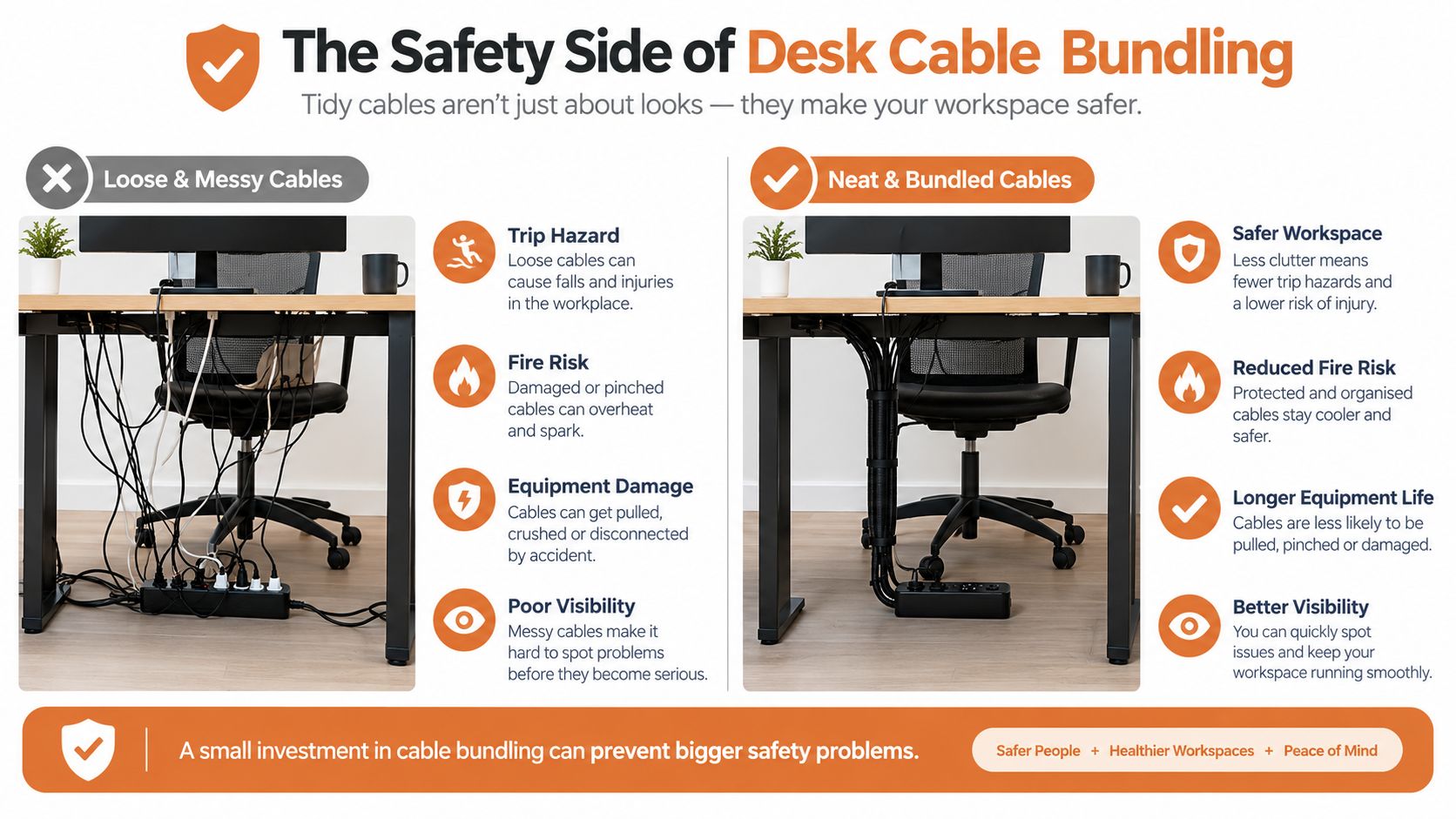
You notice the problem when you reach under a compact desk to unplug a laptop and your hand finds a warm adapter, a twisted extension cord, and a sleeve packed so tightly that you cannot see what is inside. That is the point where tidy cable routing stops helping. A sleeve is useful only when it keeps the run organized without hiding wear, heat, or strain.
Historical fire data helps frame that trade-off. A University of British Columbia analysis of provincial residential fire incidents identified 28,160 residential fire incidents from 2004 through 2017, including 2,635 electrical fires, or 9.4% of the total. Electrical-distribution equipment accounted for 50.1% of those electrical fires, while permanent wiring or cables caused 19.9% of cases. Those figures do not mean a desk sleeve creates a specific risk by itself. They do support a practical rule I use on small workstations: bundle for control, not concealment.
What can go inside a sleeve
Low-voltage desk cables are usually the safest place to start. USB, HDMI, Ethernet, and audio leads can share a sleeve when the bundle stays loose, the connectors remain reachable, and nothing is pinched against the desk frame or rear edge.
Power cables need more restraint. Health Canada advises consumers to avoid covering power cords except according to manufacturer instructions, to unroll cords completely, and to use cords that are rated for the device. In practice, that makes a tightly enclosed sleeve a poor choice for an extension cord, a power bar lead, or any section sitting beside a heater, under a rug, behind a closed cabinet panel, or next to a hot power brick.
The same caution shows up in electrical design guidance. Canadian Electrical Code guidance on conductor fill and ampacity describes ampacity reductions when multiple conductors share a raceway, including an 80% ampacity level for five or more power conductors in the cited summary. A fabric or neoprene cable sleeve is not automatically treated the same way as a raceway, but the underlying point still applies. Tight bundling changes how heat escapes. It should never be treated as neutral.
The do-not-sleeve decision
Leave a cord exposed, or use open supports instead, when inspection matters more than appearance. That includes any cable with visible jacket damage, crushed sections, a loose plug, or exposed conductors. It also includes any run that already feels warm. A warm cord, outlet, power bar, or adapter is a warning sign, not something to wrap up and forget.
The same goes for high-load equipment. Do not pack heaters, appliances, or other heavy-draw devices into a dense desk bundle. Do not use a sleeve to make an extension cord look like permanent wiring, and do not hide one under carpeting. Do not daisy-chain power bars or extension cords in series.
Keep power bars and adapters outside the densest part of the bundle where possible, and leave air around anything that produces heat. Certified gear matters too. Look for CSA, cUL, or cETL markings, then route the cords so you can still inspect them without dismantling the whole desk.
Installing a Cable Management Sleeve on a Small Desk
Start by removing cables that aren’t connected to anything. A sleeve shouldn’t become storage for obsolete chargers, spare monitor leads, or unidentified adapters. Label anything you keep before bundling it, especially when a laptop dock, monitor, and desktop computer share the same route.
Plan the path with the desk in its normal working position, then check every movement you expect. For a sit-stand desk, raise and lower the surface while watching for tension, pinching, or a cable loop that catches on the frame. For a fixed desk, check the chair path and the point where cables leave the desktop.
Build the route before closing the sleeve
Place the power bar where its switch and connections remain reachable. Route low-voltage cables together from the monitor, dock, and peripherals, but keep bulky power adapters at an open branch point rather than forcing them into the central sleeve.
Use these checkpoints as you work:
- Leave service loops: Keep a small, relaxed curve near each connector so normal movement doesn’t pull directly on the plug. The loop should prevent strain, not create a hanging coil.
- Respect bend paths: Let display cables and USB leads turn gradually. Don’t fold them sharply around the desk’s rear edge or press them under a clamp.
- Separate branches: Open the sleeve near the monitor, dock, and charger so each device can be unplugged without disturbing the whole run.
- Choose modular sections: Two shorter sleeves are often easier to inspect and move than one long sleeve covering every cable from desktop to floor.
- Close lightly: The sleeve should hold the bundle together without squeezing it. If the zipper strains or the wrap won’t overlap naturally, use a larger sleeve.
Serviceability check: You should be able to identify both ends of every important cable without cutting the sleeve or dismantling the desk.
Once the cables sit naturally, close the sleeve and support it at points where it could sag or rub. Avoid fastening it so tightly that the support becomes a pressure point. Keep plugs, power-bar sockets, and adapters visible enough to inspect during routine cleaning.
Check the installation periodically. Look for warmth, fraying, crushed sections, dust around adapters, and new strain after moving the desk. If a cable becomes difficult to unplug, don’t pull on the sleeve or the cable itself. Open the route and correct the branch point.
Choosing the Right Sleeve for Reversible Desk Setups
Reversible desk setups punish permanent cable decisions. The right sleeve opens quickly, keeps the changing connections easy to reach, and still leaves enough order that the desk does not turn into a knot of loose leads after a few swaps.
That matters in Canadian home offices because work patterns still shift between office days and home days. Statistics Canada data reported by CBC’s coverage of remote work show that 82.6% of employed Canadians commuted to work in May 2025, up 1.3 percentage points from May 2024, while the share mostly working from home declined. Angus Reid reported in July 2025 that 29% of Canadian workers were working from home, including fully remote and predominantly remote workers. Many people need a setup that can change without becoming a cable puzzle, so permanent installation is rarely the goal.
Match the design to the frequency of change
For a desk that regularly switches between a work laptop, personal machine, portable monitor, or shared accessories, use a sleeve that reopens without tools. Zipper, split, and hook-and-loop designs all work if they let you reach one cable without disturbing the whole run. Add small tags or colour markers at the ends. That saves time when you need to disconnect a dock lead or charger in a hurry.
Use short modular sleeves for the stable parts of the setup, such as monitor cables running to a nearby dock or power bar. Keep the laptop charging lead or other frequently moved connection outside that fixed section if it often travels to another room. In practice, this is what keeps the desk tidy without making every device depend on the one cable you unplug most often.
Closed sleeves suit stable, low-voltage groups that rarely change, but they still need inspection access at both ends. If a cord is damaged, warm, overloaded, or plainly the wrong fit for the job, bundling it inside a sleeve only makes the problem harder to notice. A clean look is useful. Visibility is safer.
Extension cords deserve extra caution on reversible desks because they often get pressed into service as semi-permanent wiring. As noted earlier, Health Canada’s electrical-product guidance warns against covering cords except where manufacturer instructions allow it, and Canadian occupational health guidance treats extension cords as temporary rather than permanent wiring. Keep them out from under rugs, away from doors, and clear of heat sources, even if exposed routing looks less polished.
A good sleeve for this kind of desk should meet a short practical test:
- Open quickly: You should be able to access the bundle without dismantling the desk.
- Stay inspectable: Keep plugs, adapters, and power-bar connections visible.
- Allow ventilation: Avoid squeezing heat-producing equipment into a tight bundle.
- Support movement: Leave relaxed slack where the laptop or desk position changes.
- Label branches: Make charging swaps obvious instead of guesswork.
A cable management sleeve earns its place when it supports tidy routing and reversible use at the same time. The strongest setup is the one you can inspect, adjust, and unplug without hesitation.
Deskbound publishes practical guidance for compact desks, including cable routing, under-desk organisation, and space-saving home-office upgrades. Visit Deskbound to find setup advice that helps you keep a small workspace tidy, accessible, and easier to reconfigure.
Crafted with the Outrank app