Centre your primary monitor directly in front of you, keep both screens at the same height with their top edges at or slightly below eye level, and use a monitor arm rather than a stand on any desk smaller than 55 inches deep. Keep the displays roughly 40 to 74 centimetres away, or farther when larger text and a broader viewing range make that more comfortable.
You’re probably dealing with a desk that has to do more than hold monitors. It may sit against a bedroom wall, share space with a dining area, or leave barely enough room for a keyboard once the laptop, webcam, and power bricks arrive. A dual monitor desk setup can make research, writing, meetings, and spreadsheets easier to manage, but only if the screens fit your body and your room.
The mistake is to copy a spacious office layout onto a shallow surface. Compact workstations need a reversible arrangement, careful viewing geometry, and hardware that gives the desk surface back. The best setup often looks less dramatic than a wide, flat wall of screens. It allows you to work without repeatedly turning your head, dragging cables across the floor, or dismantling half the room after hours.
Table of Contents
- Why Small Desk Dual Monitor Setups Fail
- The Ergonomics Behind Screen Placement
- Choosing Between Monitor Arms and Stands
- Setting Up Your Monitors for Comfort
- Managing Cables on Compact Desks
- Final Checks and Common Pitfalls
Why Small Desk Dual Monitor Setups Fail
A common small-desk scene goes like this. The desk is crowded, the two displays are pushed as far apart as possible, and the gap between their bezels sits neatly in the centre of the desk. It looks symmetrical from the doorway. After a few hours, the person using it realises that the main document is on the left screen, while the chair, keyboard, and torso are aligned with the seam.
That arrangement turns ordinary window switching into repeated neck rotation. The user keeps leaning toward the primary display, then returning to the middle, then turning toward the secondary display for messages or meeting controls. On a shallow desk, the problem gets worse because the screens are often too close, too high, or forced into a flat line that places the outer edges beyond a comfortable viewing zone.

The centreline matters more than symmetry
If one monitor carries most of your work, centre that screen in front of your chair and keyboard. Put the secondary display beside it, angled inward. If both screens receive equal attention, centre the join between them instead. The right choice depends on your workload, not on how balanced the setup appears in a photograph.
A laptop dock can make this practical. Keep the laptop closed or raised off the main surface, route the display cables toward the rear edge, and leave the central area for the keyboard and mouse. A monitor arm helps because a desktop stand can consume the exact space needed for writing, charging, or packing the workstation away.
Practical rule: Centre your working position around the screen you look at most, not around the furniture or the bezel gap.
The shift toward home-based computer work makes this a design issue rather than a niche upgrade. Statistics Canada reported that the share of Canadians working most of their hours from home rose from 7% in May 2016 to 24% in July 2022, a threefold increase described in the Canadian remote-work research summary. A home desk now has to support office-style tasks while preserving the room’s other uses.
The setup fails when it treats screen count as the main objective. On a small desk, neutral posture, usable depth, and easy removal matter more than filling every available centimetre with display area.
The Ergonomics Behind Screen Placement
Two screens change how your eyes, head, and upper body share the work. That doesn’t make dual monitors bad or automatically better. It means the arrangement creates physical demands that a single centred display doesn’t create.
A McGill University thesis tested 27 healthy participants during a 90-minute computer task using single- and dual-monitor workstations. Visual strain and right upper-trapezius muscle activity increased significantly over the task period. The dual-monitor condition also changed neck repositioning performance, including a mean overshoot of 4.15 degrees, as reported in the Canadian review of remote-work monitoring and workstation evidence.
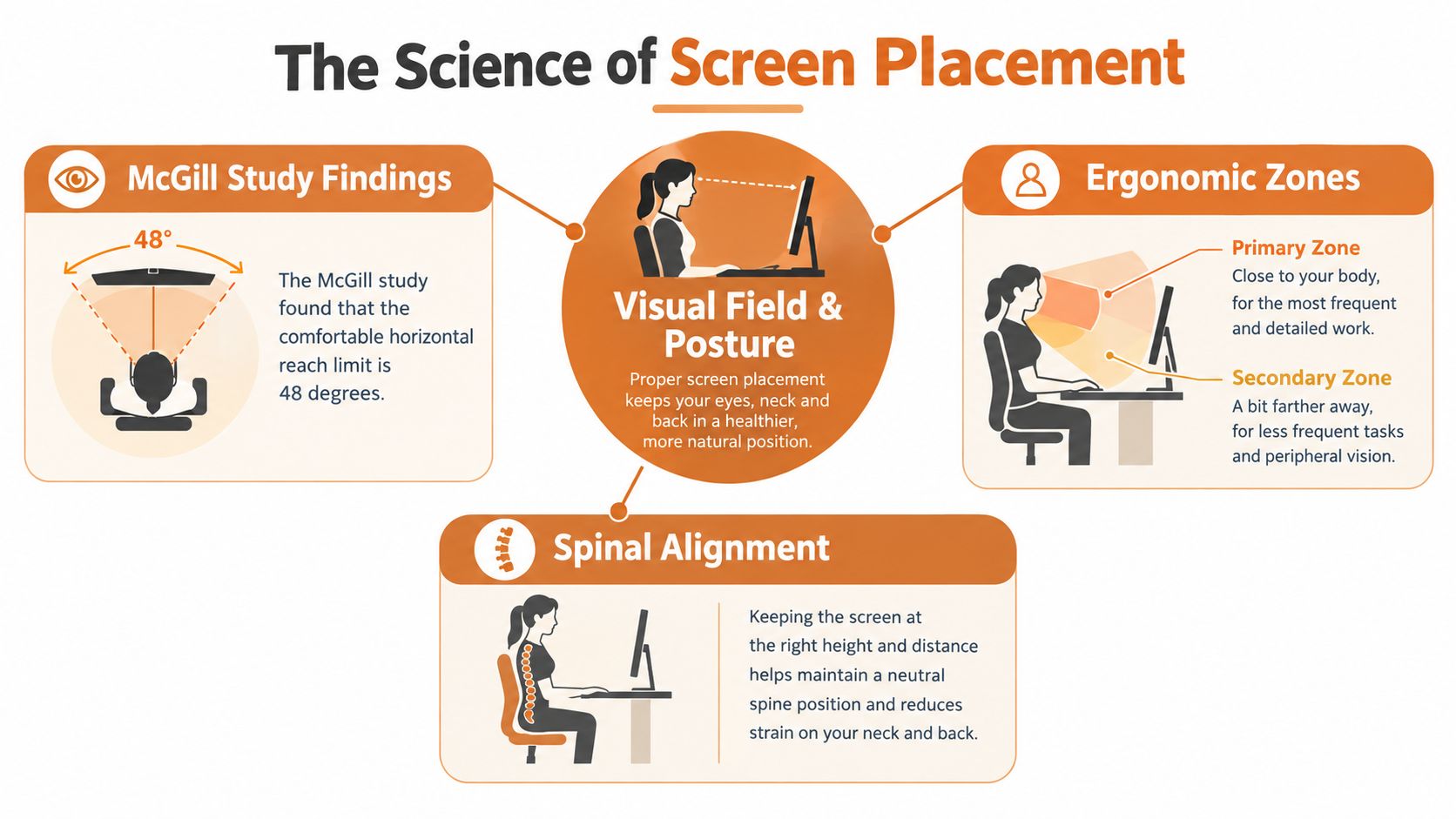
Primary and secondary viewing zones
The practical reading is straightforward. Put the content you inspect continuously in the primary zone directly ahead of you. Use the side screen for material you glance at, such as chat, a reference page, a calendar, or meeting controls. If you keep your main document on an off-centre display because the desk is centred between both panels, your neck will pay for that visual preference.
Angle the secondary screen inward rather than leaving both panels flat and parallel. A slight V or shallow semicircle brings the outer edges toward you without requiring a deeper desk. Keep the combined display area within a comfortable horizontal field, and avoid placing frequently used controls at the far edge.
Viewing distance is equally important. Canadian occupational guidance gives a prolonged-work screen-distance range of 63 to 85 centimetres, according to the CFMWS ergonomics guide. Other Canadian workstation guidance uses approximately 40 to 74 centimetres, or up to 50 to 100 centimetres when larger text or a broader viewing arrangement suits the user. These ranges aren’t a reason to force every desk to the same measurement. They show why a shallow surface can make two displays difficult to place well.
A monitor arm doesn’t solve poor geometry by itself. It gives you more control over height, depth, tilt, and angle. You still need to position the chair first, keep the primary screen centred, and enlarge text instead of pulling the panels closer when the desk runs out of depth.
Choosing Between Monitor Arms and Stands
On a compact desk, the choice between an arm and a stand is really a choice about recoverable surface area. A dual-screen stand is simple and stable, but its base occupies the middle or rear portion of the desk. That can leave your keyboard pushed toward the front edge, especially when the displays need to sit far enough away for comfortable reading.
A monitor arm moves the support off the work surface. It can also let you set each display independently, which is useful when the screens have different bezels, weights, or mounting points. The trade-off is installation. You need a compatible clamp or grommet position, sufficient rear clearance, and a desk that can tolerate the mounting load.
Compact-workspace decision matrix
| Priority | Monitor arm | Desktop stand |
|---|---|---|
| Desk footprint | Reclaims most of the support area | Uses valuable surface space |
| Height adjustment | Usually independent for each screen | Often limited by the stand |
| Angle control | Useful for a slight inward V | Depends on the model |
| Installation | Requires mounting and cable routing | Usually quick to place |
| Reversibility | Clamp arms can be removed, but leave hardware to manage | Easy to lift away |
| Best fit | Shallow desks and changing layouts | Stable desks with spare rear depth |
The arm is usually the better choice when the desk is shallow, the keyboard needs to stay centred, or the workstation must convert back into general room space. A vertical dual-monitor stand can work when horizontal width is the limiting factor, but it changes the posture problem rather than eliminating it. The upper screen may demand more upward gaze, and the lower screen can force a cramped arrangement if the desk is already short front to back.
Check the arm’s weight capacity, clamp opening, VESA compatibility, and range of motion before buying. A heavy screen on an underbuilt arm will sag, while a clamp placed over a thin or hollow rear edge may feel unstable. Leave enough cable slack for moving the display without pulling the connector or dragging the dock.
For a permanent, deeper desk, a stand remains a reasonable low-fuss option. For a desk that must be cleared, shared, or used close to a wall, the arm earns its space by keeping the working surface open.
Setting Up Your Monitors for Comfort
Start with the chair, not the monitors. Sit in your normal working position, place the keyboard where your hands naturally rest, and identify the centreline of your shoulders and torso. Then align the primary display with that line before mounting or tightening the second arm.
Canadian workstation guidance recommends keeping both screens at the same height, with the top of the active viewing area at or slightly below horizontal eye level. It also supports a practical viewing distance of approximately 40 to 74 centimetres, or up to 50 to 100 centimetres where the user needs larger text or a broader range, as described in Health PEI’s workstation guidance.
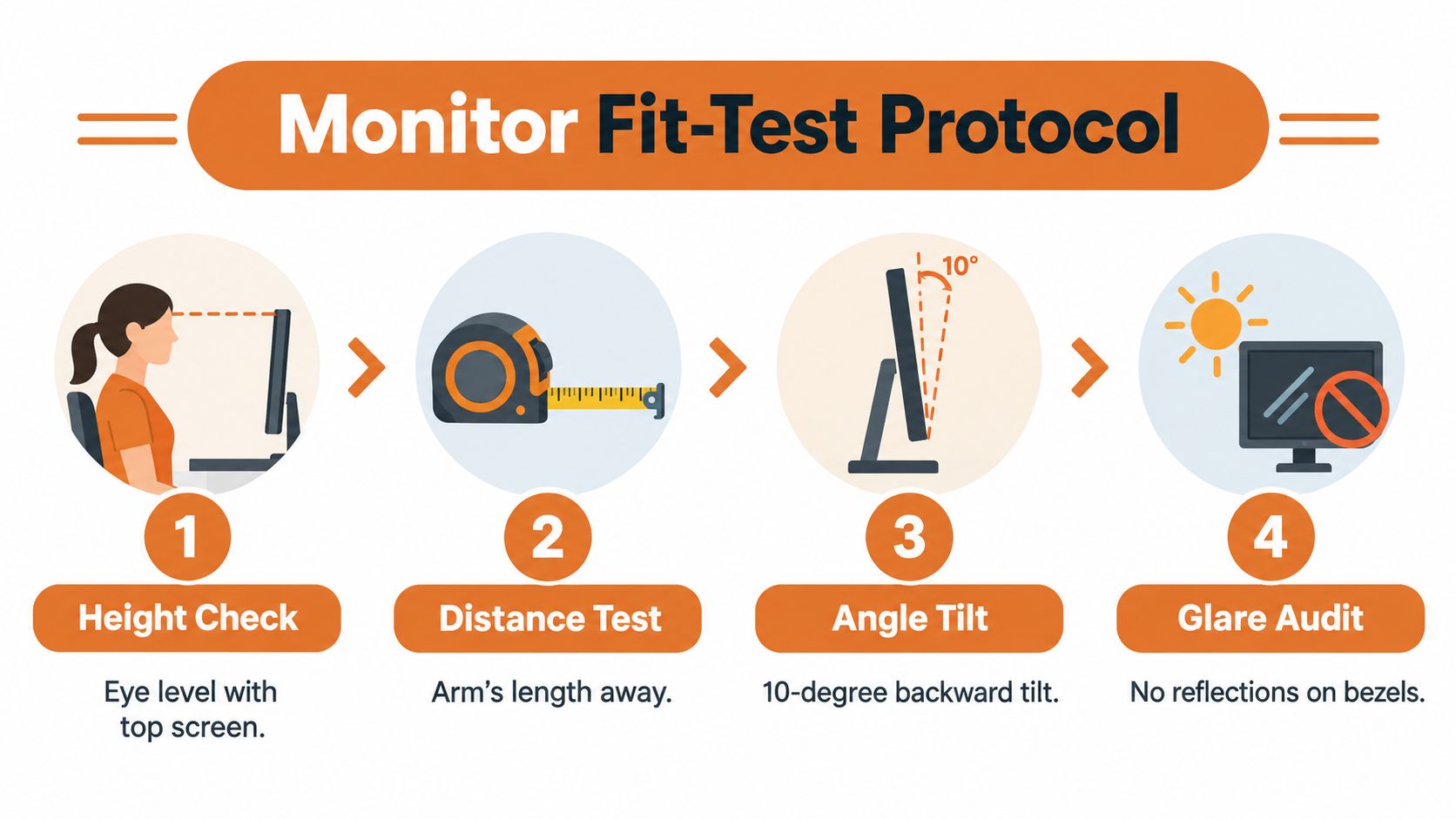
Use this fit-test sequence
-
Align the primary screen. Centre it with your chair and keyboard. If it carries most of your work, don’t centre the seam between the displays.
-
Set the distance. Begin at roughly one arm’s length. If text looks small, increase the font or interface scale instead of sliding the monitors toward your face.
-
Add the secondary screen. Place it immediately beside the primary display and angle it inward. For a mostly primary-screen workload, a stronger inward angle is useful. For equal use, centre the join and slightly increase the distance to reduce repeated turning.
-
Match height and tilt. Keep both displays level with each other. Tilt each panel backward by about 10 to 15 degrees when needed to reduce reflections and preserve a natural downward line of sight.
-
Read before tightening. Open a document on each display and read the first line of text for several minutes. You should be able to read without lifting your chin, jutting your head forward, or rotating your torso.
-
Check the camera position. A webcam should sit near the screen you face during calls, not at the far side of a two-screen arrangement. If the camera points across your body, callers may see a profile while your neck follows the other monitor.
The most useful test is behavioural. Switch between displays and notice whether your eyes move first or your head and shoulders move first. Minor eye movement is expected. Repeated neck rotation means the angle, centreline, or distance needs adjustment.
<iframe width=“100%” style=“aspect-ratio: 16 / 9;” src=“https://www.youtube.com/embed/kB0zWBlua-E” frameborder=“0” allow=“autoplay; encrypted-media” allowfullscreen></iframe>
A shallow desk often tempts users to push screens closer until the full width fits the available surface. Resist that shortcut. Larger text, a cleaner window layout, or a single larger display can preserve viewing geometry more effectively than compressing two panels into an uncomfortable distance.
Managing Cables on Compact Desks
Cable management starts before the monitors go on the arms. Lay out the dock, power bar, display cables, webcam, and keyboard cable on the floor or desk, then decide where each connection will travel. On a narrow surface, every cable that crosses the working area steals room from the keyboard and creates a snag point when the desk needs to be cleared.
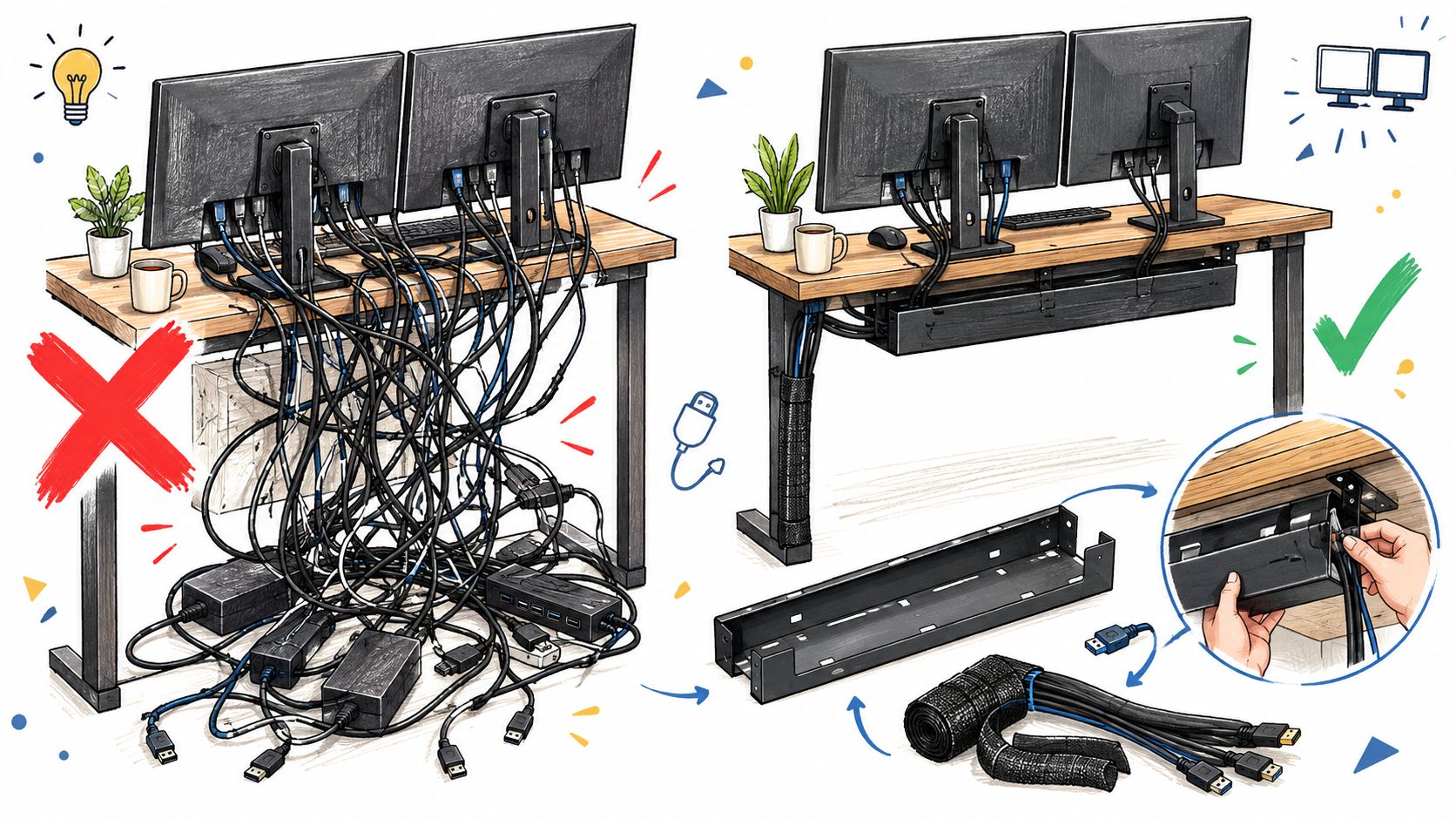
Build one route, not several loops
Run both display cables down the nearer monitor arm, then guide them toward the rear corner where the laptop dock sits. Keep the power cables separate from the short signal paths only where separation makes troubleshooting easier. A small labelled bundle is better than forcing every cable into one thick, rigid coil.
Use reversible cable tools where the furniture isn’t yours or the room has to change later:
- Under-desk tray: Hold the power bar and larger adapters below the surface, leaving the rear edge clear.
- Adhesive raceway: Guide one clean run along the underside or rear panel. Choose removable adhesive and test it on an inconspicuous area.
- Velcro ties: Bundle cables loosely so you can add or remove a display without cutting permanent ties.
- Cable clips: Keep the charging lead and keyboard cable within reach instead of letting them fall behind the desk.
- Arm channels: Use the monitor arm’s built-in covers when available, but don’t pack them so tightly that the arm loses its range of motion.
Power bricks cause disproportionate clutter. Mount them beneath the desk with removable straps or place them in a shallow rear basket. Don’t suspend heavy adapters from a display cable, and don’t route cables where chair casters can roll over them.
Leave deliberate slack
A reversible dual monitor desk setup needs movement allowance. Leave a modest service loop near each arm joint and enough slack at the laptop end to disconnect the dock without pulling the desk-mounted bundle. The loop should rest against the rear edge, not hang in front of your knees.
For a shared room, create a reset routine. Close the laptop, disconnect one dock cable, lift the keyboard and mouse into a storage tray, and coil the webcam lead with a Velcro tie. If the screens remain mounted, the surface can still return to another use quickly. If the entire arrangement must disappear, choose arms with accessible clamps and keep every removable component in one labelled container.
Cable management isn’t decoration. It protects the setup’s reversibility, keeps the floor clear, and prevents a small workspace from becoming harder to use than the single-screen arrangement it replaced.
Final Checks and Common Pitfalls
A compact dual monitor desk setup is finished only after it passes a use test. Sit through a normal working sequence, not just a few seconds of adjustment. Open the applications you use, join a call, compare documents, and reach for your notebook. The correct layout should support those actions without making you compensate with your neck, shoulders, or torso.
Run the physical checklist
- Centreline: The primary screen sits in front of you when one display carries most of the work. If usage is equal, the seam sits at your midline.
- Height: Both screens are level, with the top of the active viewing area at or slightly below horizontal eye level.
- Distance: You can read comfortably without leaning forward. Increase text size before moving the panels closer.
- Angle: The displays form a slight V rather than forcing a flat, wide reach.
- Glare: Reflections don’t appear across the text, bezels, or webcam image.
- Keyboard position: Your hands stay centred relative to the primary working zone, not pushed sideways by a stand.
- Cable slack: You can reposition or disconnect the laptop without tugging the monitor arms or connectors.
- Room reset: You know where the keyboard, webcam, dock, and loose cables go when the desk needs to serve another purpose.
Unequal screen heights are one of the easiest errors to miss. Your eyes can tolerate the difference during a quick glance, but repeated movement between mismatched panels makes the setup feel disjointed. Stand limitations often cause this, which is another reason independently adjustable arms are useful.
A side monitor also shouldn’t become the accidental primary display. If you find yourself turning toward it for most tasks, move it to the centreline and reclassify the other screen as secondary. The furniture doesn’t get to decide which display matters most.
Know when two screens aren’t the right answer
Two equal monitors aren’t automatically the most compact solution. An ultrawide can remove a stand, one power connection, and one set of display adjustments, but it may be less convenient when you regularly share individual windows in meetings. A laptop plus portable display can be easier to store and move, though the laptop screen may sit at a different height unless you raise it.
Choose the format that matches how often you need the second view. If you use it only for occasional research or calls, a portable secondary screen may create less daily friction than a permanently mounted pair. If you compare documents, code, edit, or monitor several applications continuously, two aligned displays can justify the added hardware.
The strongest setup is the one you can maintain. If the screens look impressive but force twisting, consume the keyboard area, and take too long to pack away, the arrangement has failed its actual job. Comfort, clear routing, and a reliable reset process matter more than visual symmetry.
Deskbound publishes practical reviews, compact-desk setup guides, and step-by-step advice for cable management, ergonomics, and small-space organisation. Visit Deskbound to find focused recommendations for building a cleaner dual-monitor workstation that fits the way you really use your room.
Created with Outrank tool