Your mouse keeps bumping the keyboard, your notebook is balanced beside the laptop, and the charging cable has slipped behind the desk again. A TKL wireless keyboard looks like an easy fix: lose the numeric keypad, clear some surface space, and stop dragging a cable across your work area.
That works only if the keyboard fits your typing habits and reconnects without fuss. For a Canadian home office, radio certification, receiver placement, and wake-from-sleep behaviour deserve a place beside switch feel. The right purchase is the keyboard that passes on your desk, not the one with the longest battery claim.
Table of Contents
- Quick Picks for Every TKL Wireless Keyboard Budget
- How a TKL Layout Frees Desk Space
- Which Mode to Use
- Typing Feel and Noise on a Real Desk
- Battery Life and Wireless Reliability Checks
- Best TKL Wireless Keyboard for Each Use Case
- Confirm Your Model Before You Buy
Quick Picks for Every TKL Wireless Keyboard Budget
Quick picks by price, height and connection
| Model | Starting price (CA) | Listed height | Connection modes | Best fit |
|---|---|---|---|---|
| Logitech G515 LIGHTSPEED TKL | Logitech Canada lists CA$179.99 on promotion, down from CA$199.99 | 22 mm | 2.4 GHz LIGHTSPEED, Bluetooth, wired USB | Budget desk with a dampened case |
| Logitech G915 X LIGHTSPEED TKL | About CA$299.99 | 22.6 mm | 2.4 GHz LIGHTSPEED, Bluetooth, wired USB | Thin profile for multi-device work |
| Razer DeathStalker V2 Pro Tenkeyless | From CA$319.99 | 26.6 mm | Razer HyperSpeed 2.4 GHz, Bluetooth, wired USB-C | Premium pick for low-profile optical switches |
All three pair a dedicated 2.4 GHz receiver with Bluetooth, so price, height, and controls do the separating here. None of them wins on connection modes alone.
Which purchase makes sense
Start with the G515. It’s the lowest-priced candidate on this shortlist, and Logitech describes sound-dampening layers inside the case, which matters if someone else shares the room. Budget is relative, though. The promotional price sets the floor, and this table doesn’t establish a recommendation below it.
The G915 X is the premium alternative, with per-key customization worth investigating if your workflow runs on shortcuts and device changes. Both Logitechs list nearly identical heights and the same three connection modes, so the extra money buys controls and construction, not thinness or wireless reach.
That makes the premium a question of workflow, not the TKL label. Don’t pay for easier device switching until you’ve confirmed how switching behaves with your computers.
The Razer sits at the top of this shortlist by starting price and stands out as the tallest board here at 26.6 mm. Its HyperSpeed receiver and Bluetooth mirror what the Logitechs offer, so it earns its place through switch preference and software, not through wireless capability.
Narrow the shortlist
Answer these before comparing switch colours:
- Budget ceiling: What can you spend without relying on a promotion staying available?
- Device requirement: Is this for a permanent desktop, a laptop, or both?
- Shared-space requirement: Will someone else hear every paragraph you type?
Keep the G515 and whichever alternative solves a specific unmet need. If your ceiling is lower, apply the same filters to cheaper candidates rather than stretching your budget for a model that hasn’t earned the difference.
Shortlist pass: Each candidate fits your budget and has a clear job. Fail: The justification is only premium branding or an attractive discount.
How a TKL Layout Frees Desk Space
A tenkeyless layout removes the numeric keypad while normally retaining the main typing block, function row, arrow keys, and dedicated navigation cluster. That last distinction matters: a conventional TKL isn’t the same as a tightly compressed layout that moves navigation onto layers.
The useful saving is usually beside the keyboard. You can bring the mouse closer without shifting the typing block away from your body, while leaving a usable place for a notebook or mug.
Footprint by keyboard layout
| Layout | Numeric keypad | Desk trade-off |
|---|---|---|
| Full-size | Yes | Usually the widest footprint; least lateral mouse space |
| TKL (tenkeyless) | No | Frees mouse space while retaining familiar navigation |
| 75% | No; other keys are clustered compactly | More compressed arrangement; navigation may need relearning |
Don’t buy from layout labels alone. Case borders, media controls, and key spacing affect the actual footprint, so use the exact product dimensions when making a paper template. Generic width estimates won’t tell you whether the keyboard clears your monitor stand.
Predictable keys still matter
Canada’s adopted keyboard-layout standard, CSA ISO/IEC 9995-1, addresses keyboard sections, relative placement, key spacing, and character-placement principles, according to the CSA standard listing. It provides layout context, not a comfort score or an endorsement of a particular keyboard.
Inspect product photographs for Enter, Shift, punctuation, and the legends you use daily. A Canadian storefront doesn’t automatically mean the physical arrangement matches your existing keyboard.
Measure the working area
- Check desk depth. Include the space occupied by the monitor base, laptop stand, and cable connections.
- Mark mouse clearance. Tape the keyboard outline onto the desk, then move the mouse through your normal working range.
- Try your number-heavy task. Enter a representative spreadsheet using the top number row before deciding you can comfortably lose the keypad.
For changes beyond the keyboard, our small-desk space-saving upgrades help you assess the whole surface rather than one accessory.
Fit rule: A smaller keyboard helps only if the space it releases becomes usable space.
Fit pass: You can type centrally, move the mouse freely, and finish routine number entry comfortably. Fail: You gain surface area but introduce awkward reaching or a constant need for a separate keypad.
Which Mode to Use
| Mode | Latency and reliability | Port and power use | Best scenario |
|---|---|---|---|
| 2.4 GHz LIGHTSPEED | Low latency per manufacturer; not an independent benchmark | Occupies a receiver port; keyboard uses its battery | Desktop work and gaming |
| Bluetooth | Response and reconnection need checking on your computer | No dedicated USB receiver required | Laptop or dock without a spare port |
| Wired USB | Removes the keyboard’s radio link from the connection | Uses a USB port and supports charging | Charging or troubleshooting wireless instability |
Connection mode matters more to daily use than the model name. Choose around your busiest device and the ports you can spare, not around a wireless logo.
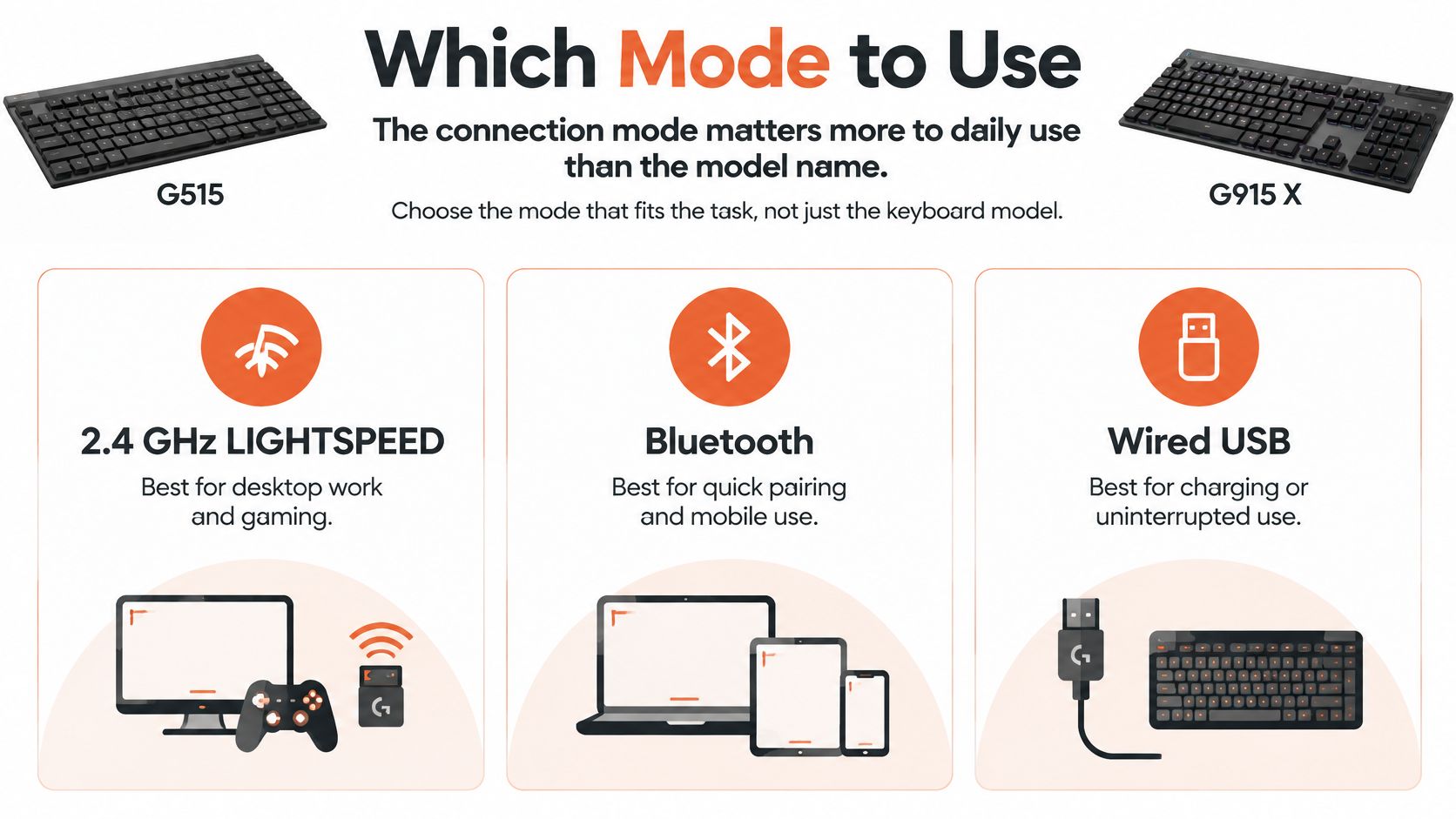
Logitech’s G515 Canadian product page lists 2.4 GHz LIGHTSPEED, Bluetooth, and wired USB, alongside a 22 mm profile and sound-dampening construction. Those specifications explain its flexibility, but Logitech’s low-latency description isn’t an independently measured Canadian end-to-end latency result.
Match the link to the job
For a desktop that stays in place, start with the dedicated receiver. It keeps the keyboard’s desktop connection separate from the Bluetooth pairing routine and is the manufacturer’s intended performance-oriented option. Don’t interpret that recommendation as a promise that every receiver location will work equally well.
For a laptop carried between rooms, Bluetooth avoids leaving a receiver behind or occupying a scarce dock port. Check the keyboard’s supported device-switching controls and your operating system’s compatibility. Bluetooth support alone doesn’t tell you how convenient changing devices will be.
For charging or fault isolation, wired operation is valuable. If missed input disappears when you connect the cable, you’ve narrowed the investigation towards the wireless path rather than proving the switches are defective. A cable won’t cure every software or USB problem, but it gives you a useful comparison.
A low-latency marketing claim describes a product promise. A measured result requires a documented test method.
Choose before pairing
Write down the computers the keyboard must serve and identify which handles the most demanding work. Allocate the receiver to that machine if appropriate, then decide whether Bluetooth is a practical secondary connection.
Don’t assume the premium keyboard will manage this arrangement better just because it costs more. Compare the actual switching controls, mode indicators, and software requirements.
Mode-choice pass: Your primary computer has a suitable connection and a workable charging fallback. Fail: The plan requires an unavailable port, unsupported pairing arrangement, or software you can’t install.
Typing Feel and Noise on a Real Desk
Typing feel, battery life, and Bluetooth reliability are the criteria we use when testing compact wireless keyboards at Deskbound. Feel needs its own assessment because a stable wireless link won’t rescue switches that cause accidental input or encourage you to strike every key harder than necessary.
Start with the switch action. Linear switches move without a deliberate tactile bump. Tactile switches provide a bump during the stroke, while clicky switches add an intentional audible click that case damping won’t remove.
Separate pressure from impact
Actuation force affects how hard you press before input registers. Travel affects how far the key moves, and bottom-out is the impact when it reaches the end of that movement. These are separate sensations.
A light switch can feel effortless but produce unwanted letters under resting fingers. A stronger tactile response may help you type deliberately, yet still feel tiring if you press through every stroke with excessive force. Don’t equate low profile with comfortable, or heavier with better built.
Keycaps deserve a separate check. Double-shot legends are formed into the cap rather than painted onto its surface, so compare the legend-making method as well as PBT versus ABS. Material labels alone don’t establish that every keycap will feel better or stay pristine.
Listen beyond the switch
A keyboard’s loudest sound may come from the spacebar rather than the letter keys. Listen for stabilizer rattle on Enter and Shift, sharp bottom-out clack, and resonance travelling through the desktop.
Use this practical trial before committing:
- Type representative work: Include punctuation, shortcuts, capitals, and repeated spacebar presses.
- Keep wrists neutral: Adjust the board’s position before judging whether the switches feel tiring.
- Record from your seat: Use a phone recording with the room’s ordinary background sound, not only a close-up recording beside the keys.
- Repeat on a desk mat: Compare the result without changing the keyboard or your typing force.
Our keyboard-noise reduction guide covers mats, O-rings, stabilizer modifications, switch lubrication, and case foam in an order to try. Start with reversible placement changes before opening a new keyboard, particularly while deciding whether to return it.
Shared-room judgement: The best compromise is a keyboard you can use comfortably without making the room unpleasant for someone else.
Typing pass: Normal work feels controlled, larger keys don’t distract, and the sound is acceptable where you’ll use it. Fail: You compensate with tense hands, repeated corrections, or changes that still leave disruptive noise.
Battery Life and Wireless Reliability Checks
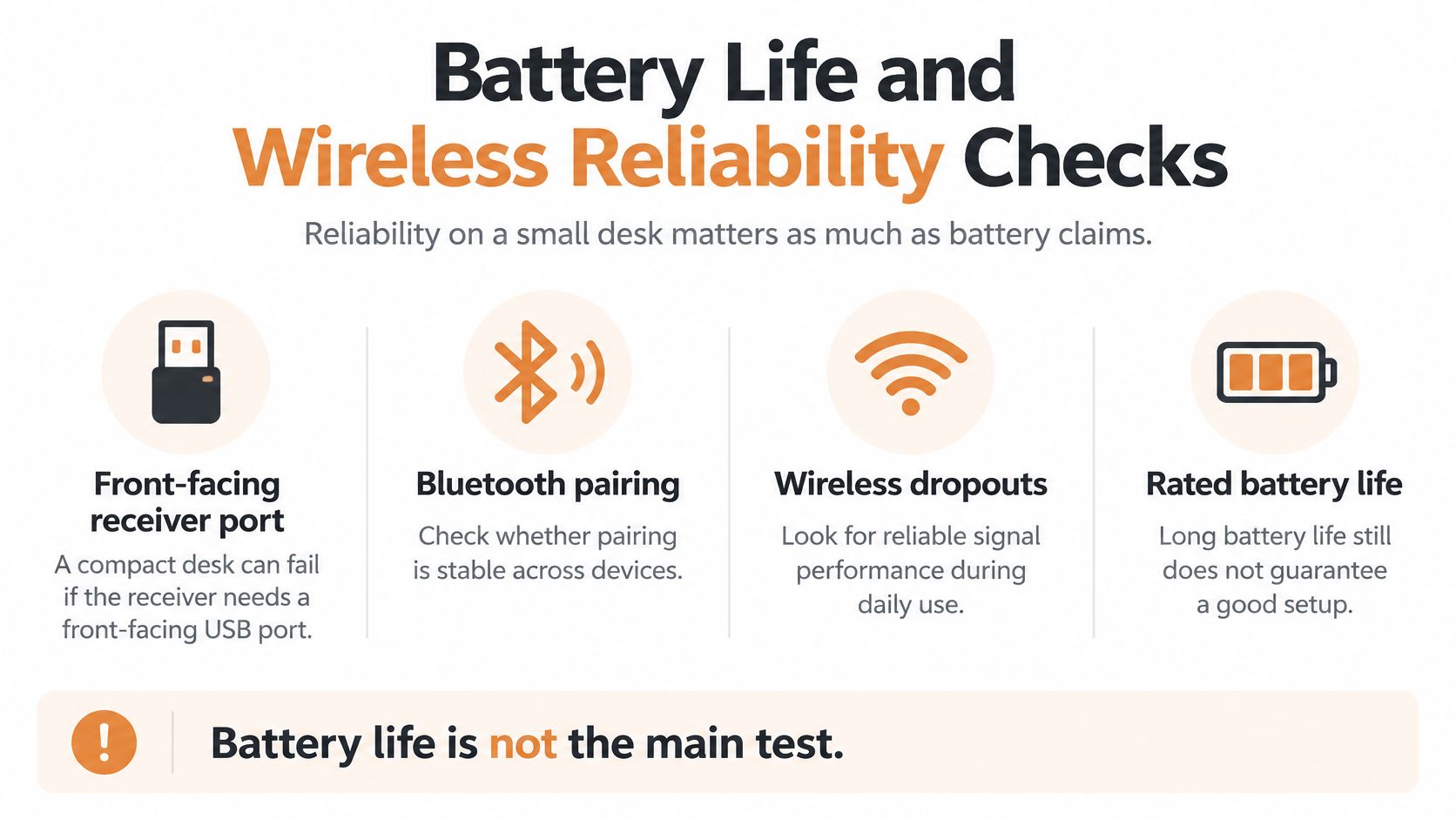
Battery endurance isn’t enough. A keyboard that lasts between charges can still be a poor purchase if it loses input after sleep or works only with a receiver protruding from the laptop’s most accessible port.
Canadian suitability also belongs in the reliability check. ISED’s interference guidance explains that licence-exempt devices must meet Canadian standards and that uncertified equipment can cause interference; look for the ISED/Industry Canada certification identifier on the product or in its manual.
Run the connection routine
Treat the following as acceptance tests, not laboratory benchmarks. Use the same document and ordinary workload for each connection arrangement so the comparison remains useful.
- Receiver placement: Try a front port, a rear port, and a short USB extension that brings the receiver towards the keyboard. Record which locations remain stable.
- Busy-room use: Work with your normal Wi-Fi, phone, speakers, and controller active. Note missing characters, repeated input, or interruptions.
- Sleep recovery: Put the computer to sleep, resume it normally, and check whether input returns promptly without intervention.
- Device switching: Repeat switching between your intended computers several times. Record reconnect behaviour rather than relying on whether the first attempt worked.
- Restart recognition: Restart the computer and check that the keyboard is available without unplugging the receiver.
For battery assessment, fix the backlight setting, record the starting charge, and log active use and the ending charge across a working week. Independent battery results aren’t established here for these models. Compare against manufacturer-rated hours only when the lighting and usage conditions are reasonably comparable.
Pass or fail sheet for wireless tests
| Test | Pass condition | Fail sign |
|---|---|---|
| Receiver placement | Stable at front, rear, and extension positions | Dropouts at any tested position |
| Interference room | No dropouts during ordinary work | Repeated stutter or lost keys |
| Wake from sleep | Reconnects promptly without intervention | Needs replugging or re-pairing |
| Device switching | Every attempted switch reconnects consistently | Failed switch or unusually long recovery |
| Reboot recognition | Receiver recognised after restart | Missing until replugged |
| Battery drop across a working week | Endurance meets your charging needs under recorded settings | Unexpected depletion or charging interruptions |
Keep the result usable
Mark a failing receiver position even if an extension fixes it. Then decide whether that workaround fits your desk permanently. Our small-desk cable-management guide can help route the extension and charging lead without obstructing access.
Overall pass: Stable input and predictable recovery in the configuration you’ll keep. Fail: Normal typing drops out, or routine recovery requires manual re-pairing or replugging.
Best TKL Wireless Keyboard for Each Use Case
A compact keyboard doesn’t correct a workstation that’s too high. The Canadian Centre for Occupational Health and Safety’s telework guidance recommends arranging the keyboard for neutral wrists and warns that kitchen tables are often too high for suitable keyboard-and-mouse positioning.
That changes the buying order. Fix the working height and seating relationship first, then select a keyboard that preserves that position.
Priorities by use case
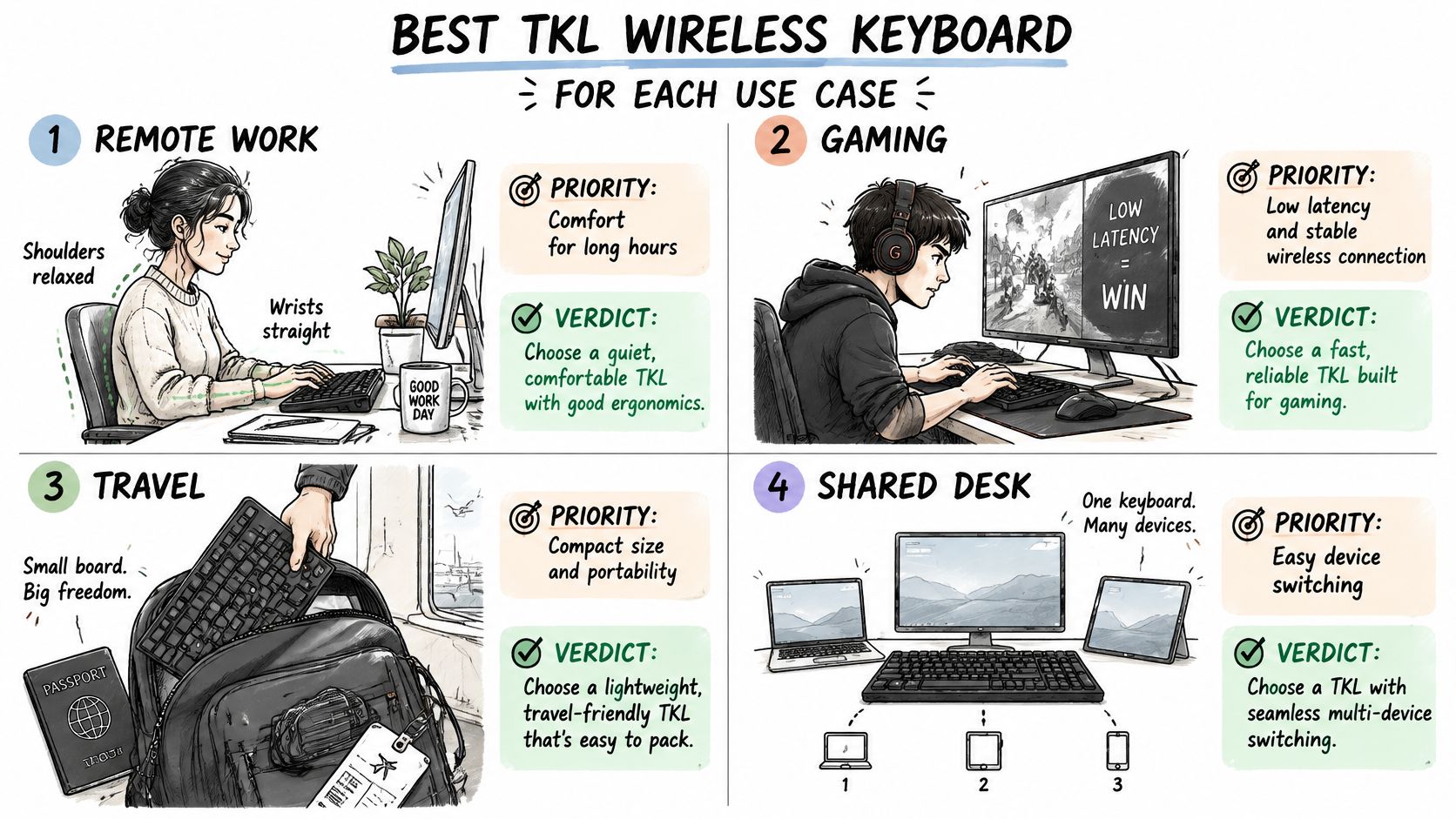
| Use case | What matters most | Connection to prioritise | Main trade-off |
|---|---|---|---|
| Remote worker in a small apartment | Quiet keystrokes and neutral wrists | Dedicated receiver for desk use | Desk height may matter more than keyboard size |
| Shared room or thin walls | Acceptable sound and considerate placement | Wired or stable receiver connection | Quietness alone doesn’t establish comfort |
| Student or freelancer on a budget | Lowest price meeting the actual need | Bluetooth when laptop ports are scarce | Paying more may not improve essential functions |
| Laptop plus desktop user | Convenient switching | Bluetooth for laptop, receiver for desktop | Reconnection must be acceptable |
| Gamer on one desktop | Consistent response | LIGHTSPEED | Manufacturer latency claims aren’t independent results |
| Accessibility-sensitive user | Accessible navigation and readable legends | Most dependable supported mode | Compressed layouts can introduce layers |
Verdicts for ordinary work
For the apartment remote worker, the G515 is the starting candidate, provided the desk-height and noise checks pass. A low keyboard doesn’t justify keeping your shoulders raised at an unsuitable table.
For a student or freelancer, keep the same starting tier and prioritise compatibility over premium controls. If none of the shortlisted models fits the budget, choose a cheaper candidate using the same acceptance sheet rather than treating this shortlist as a minimum spending requirement.
For a shared room, choose the tested sound result over the switch label. The G515’s dampened construction makes it a sensible candidate, not a guaranteed quiet-room winner. Placement away from a shared wall and a resonant surface should form part of the decision.
Verdicts for specialist needs
For laptop-plus-desktop use, compare the G915 X against the G515 rather than assuming the premium is necessary. Buy the G915 X only if its controls or customization make the actual switching workflow easier.
For a gamer using one desktop, start with the G515 and its receiver connection. Consistent input on that computer is the deciding requirement, not an unverified millisecond claim.
For accessibility-sensitive use, no model wins automatically. Test navigation access, legend readability, backlighting, pairing indicators, and basic operation without configuration software. Consider the Razer only after confirming its missing specifications and applying the same checks.
Use-case pass: You can complete your real tasks without added discomfort, confusing layers, or unwanted software dependencies. Fail: Compactness makes essential work harder, even if the desk looks cleaner.
Confirm Your Model Before You Buy
Canadian radio approval is a buying prerequisite, not an optional bonus. ISED’s wireless program identifies most Bluetooth consumer products as Category I radio equipment, requiring a Technical Acceptance Certificate and a listing in the Radio Equipment List before importation, distribution, or sale in Canada.
An imported model without a matching listing may not have demonstrated Canadian compliance. The relevant issue is its embedded transmitter, not whether the keyboard is full-size, tenkeyless, or smaller.
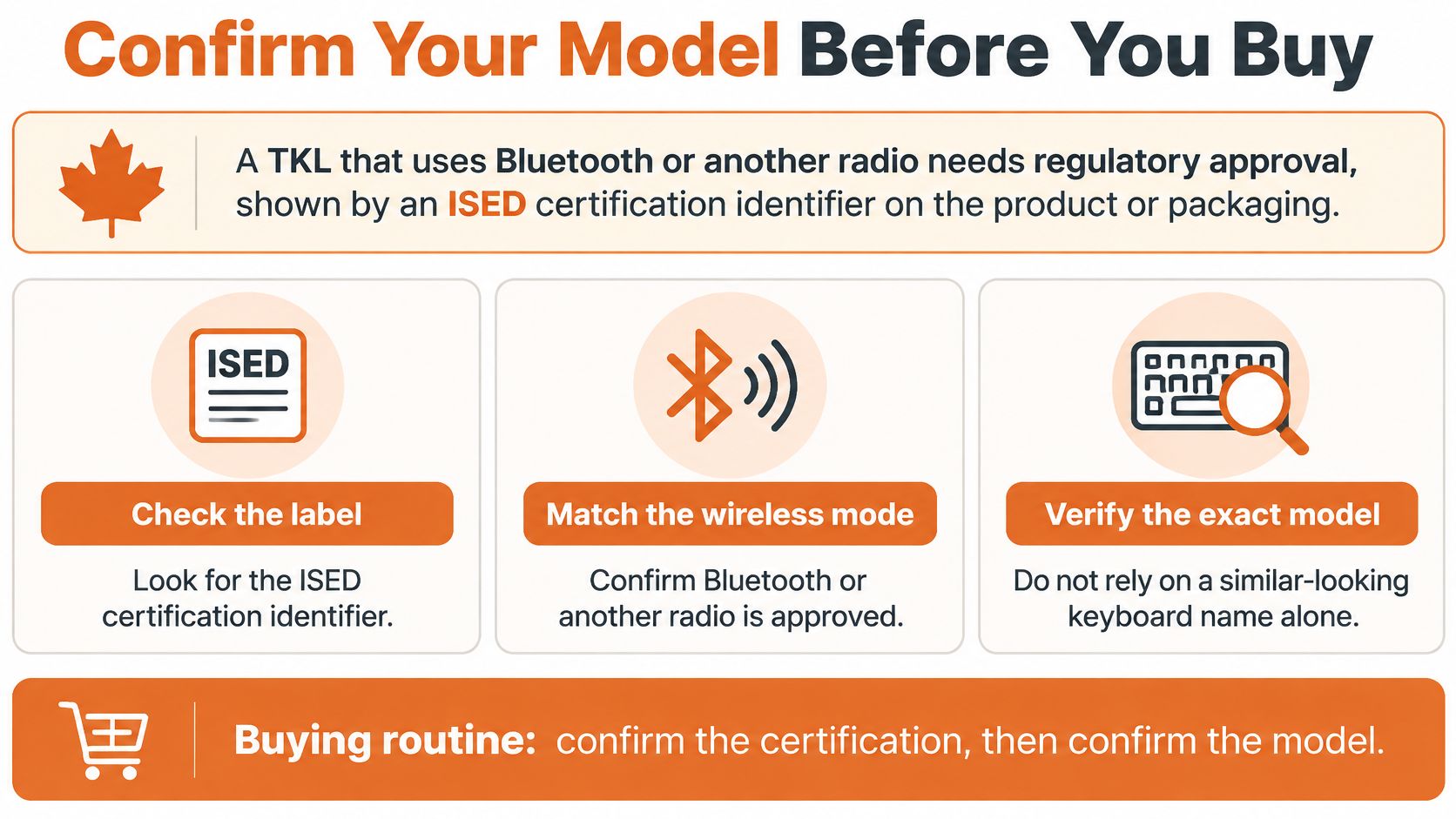
Verify the exact product
Match the identifier in the product documentation to the exact equipment you’re buying. A similar name, familiar brand, or Canadian-dollar price isn’t a substitute for checking the model.
Use this purchase checklist:
- Certification: Locate the identifier and verify the matching Canadian radio listing.
- Connections: Confirm that the keyboard and included receiver suit your computers.
- Layout: Inspect physical legends and key positions, not just the storefront language.
- Price: Check the CAD total and the selected configuration.
- Placement: Reserve a receiver location and a charging route that won’t obstruct work.
- Returns: Save the return deadline and packaging requirements before testing.
Keep the keyboard that passes
Our compact-keyboard testing covers both 75% and TKL layouts, assessing typing feel, battery life, and Bluetooth reliability. Those criteria are useful because a keyboard needs to work as a complete daily tool, not merely succeed at one specification.
Shortlist a pair of candidates, but don’t order both unless the return terms make that practical. Test the preferred model while there’s still time to act on a failure.
Purchase pass: Exact-model certification is confirmed, essential tasks feel comfortable, and the wireless acceptance sheet passes. Fail: Compliance remains unclear or daily use still requires recovery rituals.
Deskbound offers practical home-office reviews and setup guidance, including compact-keyboard testing and ways to make limited desk space work better. Visit Deskbound for more setup advice, and subscribe to our free weekly newsletter for one email a week with the best home-office finds.